Monday, August 20, 2012

Ten hidden controls of the iPhone headphones

It's never too late to discover that those boring, all-white headphones Apple threw in with your iPhone can do a lot more than adjust the volume.

In fact, any headphones that include a remote (or have a remote adapter attached) can be used to control your iPhone, iPad, or iPod Touch in up to 10 ways.

Thanks to this post by Business Insider, here are all the ways you can use your headphones as a remote controller, allowing you to perform useful functions without taking your iDevice out of your pocket.
  1. If you're listening to music, toggle pause or play by tapping the center button once.
  2. To fast-forward a song, tap the center button twice and long-press on the second tap.
  3. To rewind a song, tap three times and long-press on the third tap.
  4. To skip a song, double tap.
  5. To go to the previous song, triple tap.
  6. If you have an incoming call, tap the center button once to answer. Tap again to hang up.
  7. To ignore an incoming call, long-press the center button. You'll hear two beeps to confirm that the caller was sent to voice mail.
  8. If you're on the phone and you get a new call, tap the center button once to switch calls. To end that new call, hold the center button down for 2 seconds.
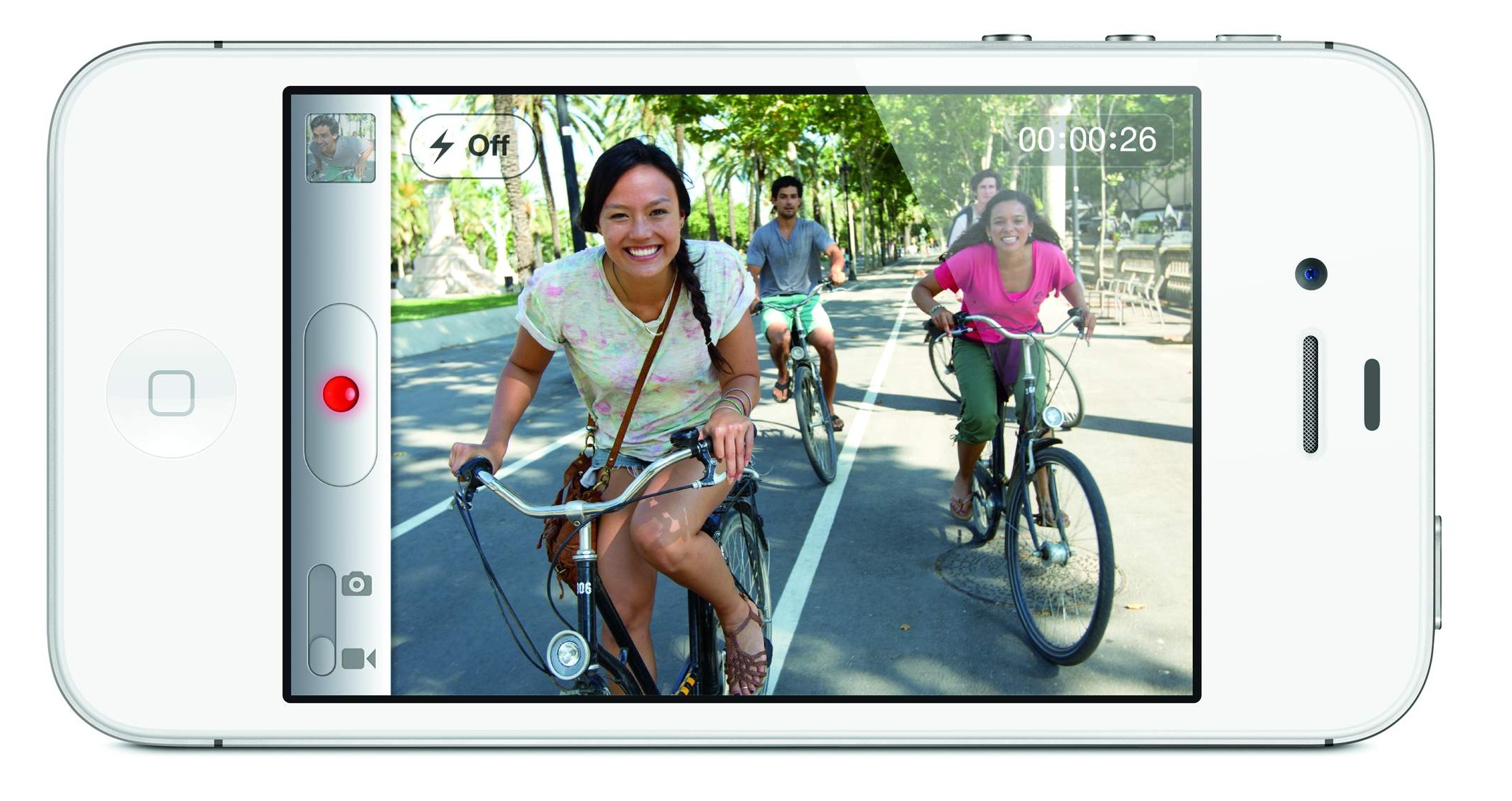
  9. You can achieve supersteady shots by using your headphones as a shutter release. Tap the volume-up button to capture a photo.
  10. For iPhone 4S owners: prompt Siri by long-pressing the center button.
Ref:  http://sg.news.yahoo.com/ten-hidden-controls-of-the-iphone-headphones.html

Saturday, June 16, 2012

How to Turn your iPhone into a WiFi Hotspot (how to)

Knowing that they were missing out on yet another way to nickel and dime their customers, AT&T worked with Apple and added a hotspot feature in iOS 4.3 and above, the result is that iPhone 4 users can turn their phone into a wireless hotspot with yet another hefty monthly fee. Verizon users can also get the privilege for a similar additional fee of $20 a month. But for the easy nature of simply flipping a switch, or for those not comfortable with jailbreaking their phone, it’s a convenient, but costly method. And if you like to play by the rules, well, enabling your iPhone’s hotspot feature couldn’t be easier. One warning though, if you’re currently grandfathered into AT&Ts unlimited data plan, once you enable the hotspot feature, you will have forfeited your all your can eat days in favor of their more limited tiered plans.

1. Talk to the right people (legal option)

Contact AT&T or Verizon and have the hot-spot feature enabled on your phone account.

2.Set up your phone

Once AT&T or Verizon has given you official sanction, you can go into your iPhone’s “General Settings”, and under “Network,” you’ll find the Hotspot switch and the ability to password protect it. Please note, that this is for iPhone 4 customers only. If you’re using an iPhone 3GS, you won’t have the hotspot feature available.

3. Catch a WiFi signal and a wave

Once you’ve got the phone all set up, all that’s left to do is connect the phone to your laptop or other wireless device by selecting it amidst the available WiFi signal.
That’s it for the official method. if you’re still using an iPhone 3GS or want to use the hotspot feature “under the radar,” then there’s a simple two step method to jailbreak your phone and add hotspotting under the radar …

1. Jailbreak your phone (illegal option)

Now I know what you’re thinking … it’ll void my warranty! It’s illegal! It’ll mess up my phone and I won’t get it back to the way it was! All not true. First, it won’t void your warranty, nor will it mess up your phone to the point you can’t get it back in working order. If you don’t like it, you can easily go into iTunes and restore it to the way it was. It’s a good idea, though, to backup your iPhone in iTunes before you jailbreak it. And it’s not illegal either. According to the US Library of Congress Copyright office, it is perfectly legal to jailbreak your phone. So fear not. The only reason to not jailbreak your phone is that when there are updates, you have to reset your phone back to the way it was to update it. Then you have to wait for the jailbreak tools figure that out before you can free it up again. But these days, it’s largely a painless process now.
Now that we got that out of the way … There are a myriad of ways to accomplish this, but by far the easiest is to use a web based app like jailbreak.me, which frees your phone with a simple, familiar slide. Other utilities to jailbreak your phone include “redsn0w,” Pwnage Tool, but there isn’t anything as easy as Jailbreak.Me.
So, how do you do it? Easy. a) Just navigate to with your phone’s safari app to this page b) tap the “Free” icon for Cydia. The Free Icon becomes an Install icon c) tap that as well. It will then install Cydia, the open source iPhone app store onto your phone. d) Then, reboot your device.

2. Open Cydia and download MyWi

MyWi is the hotspot utility that will enable you to unofficially turn your phone into a hotspot. You can try it out for free, but if you plan to use it beyond the free trial, MyWi is about $20. You can set passwords, change your SSID settings, make security settings, etc. Once you have MyWi installed and enabled, you will notice a blue bar at the top of your screen showing the hotspot connection active and functioning. You will also not how much data you are using both up and down – a handy feature.

3. Surf to your heart’s content … or until you’re caught

Once you’re all set up, you can acquire your phone’s WiFi hotspot signal and you’re off to the races. It’s a simple matter of choosing your iPhone from the list of wireless routers your gadget or laptop sees and inputting the password.
A few things though. First, using your iPhone as a wireless hotspot will drain your phone’s battery as fast as continually using your GPS feature. But you can get a few hours of hotspot use easy from it. Or, you can attach your phone to your laptop via USB and not only have the security of a wired connection, but also not drain your phone battery thanks to the USB charge feature.
Additionally, wireless carriers have taken to having the iPhone call home and download usage statistics. If they see you have been using your phone with another number or with unauthorized hotspotting they’ll simply add the charge to your bill. The good news is, however, that it isn’t a contract fee, so if you stop using it, they won’t charge you, even if you’re paying by the rules. But it also means you don’t have that extra bump in your data cap.
In the end, it may just be easier to get a MiFi card which will provide 3G wireless hot-spotting for a minimal fee. They range from $20-60 a month depending on data usage and doesn’t require jailbreaking or catching the ire of your wireless carrier.

Ref:  how-to-turn-your-iphone-into-a-wifi-hotspot

Tuesday, April 17, 2012

iPhone and iPad tips: How to make the most of Apple's hottest devices

The latest smartphones and tablets can save us time, effort and allow us to have more fun on the move.

But unless you've dozens of spare hours, it's unlikely you’ll delve deep enough into the device to get to grips with everything it can do.
A woman tries out an e-book reader app on an Apple iPad (Copyright: AFP)

Most of us never use our gadgets to their full potential but if you have an iPhone running the latest iOS 5.1 software - or the new iPad – then there are plenty of tips and tricks to make the most of the technology at your fingertips.

To help, here are 20 iOS suggestions to check out for both the iPhone and iPad.

Take note of notifications - Find out the weather news, the latest share prices and more crucially see all your missed calls and messages simply by swiping your finger down the middle of the screen from top to bottom to open Notification Center. To have more items show up in it, go to Settings > Notifications and tap any item that is not listed under the Notification Center and then turn it on.

A snappier way to shoot - Desperate to take an important photo but the iPhone is locked? Double click the Home button and the camera icon appears, putting you just a tap away from that perfect picture.

Grab the screen - Take a screenshot at any time by pressing the Home and lock button simultaneously. You will see the screen flash and find the image you’ve taken in your Camera Roll.

Sort your apps - Press down on any app until every icon on the screen begins to shake. You can then drag apps from one screen to another but also drag one on top of another to create a folder. The iOS software will automatically assign a name to this folder, judged by the type of apps you put in it. This name can though be changed. Try and drag similar apps on top of each other to create the most useful folders.

Rise to the top - In nearly all applications, you can scroll instantly to the top of long pages (such as websites, emails or social media timelines) by tapping the Status Bar.


The iPad is the Apple of many a gadget fan's eye (Copyright: Reuters)

Talking about your emotions - You don't need a third-party app to get smiley, teary or winky faces for your messages. You'll find a Emoji keyboard filled with these icons built into iOS 5. Go to General > Keyboard > International Keyboards and tap "Add New Keyboard", look for Emoji and select it.

Speak your words - If you own the new iPad, then one great addition is voice dictation. You'll see a microphone icon appear on every keyboard you type on. Tap this and record what you want to say.

Soar into iCloud -
If you own more than one iOS device then iCloud is a must. Even if you only own one, it's a simple way to backup your precious contacts and photos. Go to Settings > iCloud and sign in with your Apple ID. Having iCloud also means anything you download or store on your Apple devices can instantly be shared between them all.

Create phrase shortcuts -
If you don't want to type out a long phrase every time you need to use it, create a simple shortcut. Go to General > Keyboard > Shortcuts > + and then enter your phrase and shortcut. Auto-complete will then suggest it when you type in the shortcut.

Understand iMessage - You can now instant message for free any of your friends who own an iOS device including an iPad without needing to send a traditional paid-for SMS text. You can see what type you're sending in the text field as it'll say iMessage or Text Message. The two are also now shown as different colours with iMessage in blue and texts in green.

Split the iPad keyboard in half -
This is pretty cool for those who struggle to type on the iPad. Using two fingers, you can pull the keyboard apart from the middle making it appear on either side of the screen. It actually makes it much quicker to touch-type with only your thumbs while holding the iPad with your fingers behind it. Try it, you'll love it.


[Related Story: Best iPhone transport apps to get you from A to B in the UK]


Make your own website apps -
You'll find this really useful if some of your favourite webpages don't have specific downloadable apps. Bookmark favourite webpages as app-style icons by selecting the button at the bottom of Safari with an arrow inside a square. Choose 'Add to Home Screen' and iOS will turn the page into an icon you can name.

Never lose your iOS device -
The Find My iPhone or iPad app means you can track down the gadget if you mislay it, or even if it gets stolen. You can check out where it is on a map - assuming it is turned on and sending a signal - or make it ring in case it is nearby. More usefully, it can be locked or wiped if it falls into the wrong hands.

Go Retina on the new iPad -
It's a real waste not to take advantage of the gorgeous screen on the new iPad, it's the main reason to buy one or upgrade from the iPad 2. The Retina display has more pixels crammed in than most big HD TVs so download or update apps that have been optimised for this immense screen quality. Just click here to open up a list in iTunes.

Check your app sizes - You may well have 64GB of space on your iPhone or iPad but that doesn't mean you should needlessly fill it with massive apps that you never use. Go to Settings > General > Usage and you can see the amount of space each app is taking up.

Keep an eye on your data use - In a similar way to the app sizes, go to Settings > General > Usage > Cellular Usage and you can view statistics for the length of Call Time and the amount of data you've sent and received. Tap the Reset Statistics button to put all the stats back to zero to start again. If you know the date your billing cycle begins, then consider resetting it on that date each month to ensure you don't go over your network limits. Set a Calendar reminder so you don’t forget.


[Related Story: Best free apps for your iPhone]


Surf in private - Safari has the option to let you surf the internet without things appearing in your iOS device's web history. If you go to Settings > Safari you can switch Private Browsing on. But remember when it's switched on, nothing is saved so you have to type in the same URLs again and again if you visit them often.

Go text only in Safari - When you're viewing webpages you may notice a Reader icon appear in the URL box of Safari. By tapping this, you can remove all the pictures and adverts and simply show the article text. You'll also be able to increase the font size making this option great for those with eyesight problems.

Learn the iPad gestures - You can now use a range of gestures on the iPad when you have iOS 5 installed. You can switch from app to app with a four finger swipe, while pinching with five fingers brings up the Home screen.

Set Parental Controls - Whether your child is using your iPhone or iPad, or their own, you can set controls on their usage. Go to Settings > General > Restrictions and you'll find a list of all the possible controls including ensuring a password is needed for any in-app purchases. It could save you a small fortune if the little 'uns use your device to play games.

Ref:  http://sg.news.yahoo.com/iphone-and-ipad-tips--how-to-make-the-most-of-apple-s-hottest-devices.html

Thursday, April 12, 2012

25 Awesome iPhone tips and tricks

iPhone
Whether you're a seasoned user or brand new to the iPhone world, chances are you're probably not using your smartphone to its fullest.

Don't worry, you're not alone, as these pocket-sized computers boast many hundreds of features buried in the operating system.

And so here we share a number of our favorite iPhone tips and tricks, some of which you may know already. Hopefully there's a good number of ones you aren't aware of yet. Most of these following 25 suggestions will work with all versions of the iPhone, but be sure to have the latest software installed (iOS 5.1).

OK, here we go:

Take a photo with your headphone cord: Now that you can use the volume up or down buttons to snap a photo, steady your hand while framing up the photo and when you're ready to take the picture, press the button on the cord so it won't shake the iPhone. Voila!

Dry out a wet iPhone: You're not the first one to drop an iPhone in a toilet or sink. If this happens, don't turn it on as you can damage the smartphone by short-circuiting it. Lightly towel dry the phone. Don't use a hairdryer on the phone as it can further push moisture into areas that aren't wet. Submerge the iPhone in a bowl or Ziploc bag of uncooked white rice and leave it overnight. If you have it, try using a desiccant packet you might find with a new pair of shoes or leather purse.

Dismiss suggested words: If you're typing an email or note and the virtual keyboard is suggesting the correct spelling of the word — and you don't want to accept it — you don't need to tap the tiny "X" at the end of the word in question. Simply tap anywhere on the screen to close the suggestion box.

Take photos faster: Even if your iPhone is locked you can double-tap on the Home button and you'll see a camera icon you can tap to open the camera immediately. Now you can use the volume up button to snap the photo, too. You can also use the volume up on the headphone cord to take a photo (if you want to) and pinch the screen to zoom instead of using the slider bar.


Use location-based reminders: You probably know Siri can be used to set a reminder, like saying "Siri, remind me to call mom at 4pm today." But did you know you can set location-based reminders on your iPhone 4S? Say "Remind me to call mom when I leave here" or "Remind me to call mom when I get home" and you'll be notified accordingly.

Get word definitions: Apple has recently added a built-in dictionary and you can access it in most apps that let you select a word. Simply press and hold on a word — such as in an email, reminder, iBooks, and so on — and you'll see a pop-up option for "Define."

Revive a frozen iPhone: If your smartphone freezes on you and pressing the Sleep/Wake button on top of the device doesn't do anything, don't panic. Instead, press and hold the Home button and the Sleep/Wake button at the same time. You'll be prompted to swipe the "Slide to Power Off" tab. This so-called "hard reset" resuscitates the frozen iPhone. You'll first need to wait through a full shut down and restart.

Get more done in less time: You can create shortcuts to words and phrases you use a lot, such as Northern California Association for Employment in Education. In Settings, go to General, then Keyboard, and select Add New Shortcut. Now you can add new words or phrases and assign shortcuts to them (such as "NCAEE," in the above example, and it'll type out the full word each time.

See a 6-day weather forecast: If you're one of the many weather junkies out there, you probably know you can swipe down the iOS device's screen and you'll see the Notifications center. Weather will be at the top, but did you know you can swipe to the left or right and you'll toggle between current conditions and a 6-day forecast? Plus, jump to the Weather app by tapping anywhere on the weather bar inside Notifications screen.


Select URL domains faster: When typing a website address in Safari, you don't have to type the ".com." For example, you can type "yahoo" in the URL box to get to yahoo.com. On a related note, you can press and hold down the .com button and you'll see a list of alternatives to choose, such as .net, .org and .edu.

Make your own ringtone: Don't settle with the ringtones provided by Apple and you need not pay your carrier for more of them. As the name suggests, the free Ringtone Maker app lets you take a clip from your favorite songs and make ringtones out of them in seconds.

Feel and see when people call: Apple has added a number of accessibility features to iOS 5, specifically designed to assist those with hearing, vision, mobility and other disabilities. For example, those who are hearing impaired might opt to have the LED flash when a call comes in. If you're seeing impaired, you could set a unique vibration pattern for different people in your Contacts, so you know who's calling.

Find your lost iPhone: As long as you sign up in advance, the free Find My iPhone app will help you locate your device on a map (on your computer or other iOS device). You can display a message or initiate a loud ring (in case it's under the cushions), or remotely lock or wipe its data.
Save photos in Safari: You're surfing the web in Safari and stumble upon a photo you'd like to save. Simply press and hold on a photo when on a website and you'll be prompted with a menu asked if you'd like to "Save Image." Once the photo is saved, you can view it offline, email it or set it as wallpaper.

Take an iPhone screen grab: On a related note, if you want to take a screenshot of a website or application, press down on the Home button and tap the Sleep button. You'll hear the camera click, see a white flash and the screenshot will be saved to your Camera Roll.


Get new sounds: It's been a long time coming, but Apple has added the ability to select custom tones for incoming text messages, new emails, voicemails, tweets, calendar alerts, reminders and more. You can select something you like from within the Sounds menu. You'll also notice you can scroll to the top of this list of sounds and you'll see a "Buy More Tones" option, which takes you to iTunes.

Zip to the top of the page: In Mail, Safari, Contacts and other apps, simply tap the status bar at the top of the screen — the area that displays time, battery and cell bars — to jump back to the top quickly.

Prolong your battery: Speaking of the battery, here's how to squeeze more life out of your iPhone between charges. Turn down the brightness of your screen, turn off wireless radios you don't use (such as GPS, Wi-Fi or Bluetooth) and reduce the number of apps with info you have "pushed" to your phone. Also, make sure you lock it before putting in your pocket, purse or backpack or else it could turn on and drain the battery.

Spread out the keyboard for easier typing: Here's a tip for iPad users: If you like typing while holding the tablet, rather than stretch your fingers or thumbs for those middle letters like G, H, Y or B, you can drag the keyboard to each side of the screen to separate it into two, allowing you to easily type while holding it.

Learn some gestures: Close any app ridiculously fast by putting your four fingers and thumb stretched on the screen and pinch inwards. Sweet! You can also magnify what's on your iPhone screen with a three-finger tap. You'll first need to go to Settings, General, Accessibility, and select the various gestures options here.

Create an "app" out of a website you visit often: To add a website to your Home screen, just visit the webpage in Safari and at the top of the screen, tap the Go To icon and select "Add to Home Screen."

Create a music playlist on the fly: You no longer need a computer to create a playlist. In the Music app, tap Playlists, then select Add Playlist and give it a name ("Marc's Workout Mix"). Now, tap any song (or video) to add it to the playlist. You can add individual songs, entire albums, or all songs by a particular artist.

Don't waste your day deleting messages individually: You can delete unwanted emails en masse rather than deleting one at a time. In your Inbox, simply click the Edit button and check off the emails you want to delete with your finger and then choose Delete.

Keep track of your texting limits: If you don't have the best texting plan and don't want to unnecessarily pay to send more texts than you need, here's a tip to turn on the character count in the Messages app. Enable this in the Settings>Message option to keep an eye on your word count. Usually, your one text becomes two after 160 characters.

Mirror your iPhone with your TV: If you own an Apple TV, you can instantly and wirelessly share exactly what's on your iPhone 4S or second- and third-generation iPad with your HDTV, connected to an Apple TV — such as games, apps or videos. Simply double-tap the Home button, swipe all the way to the right and select AirPlay Mirroring.

Ref:  http://shopping.yahoo.com/blogs/digital-crave/25-awesome-iphone-tips-tricks-175636187.html